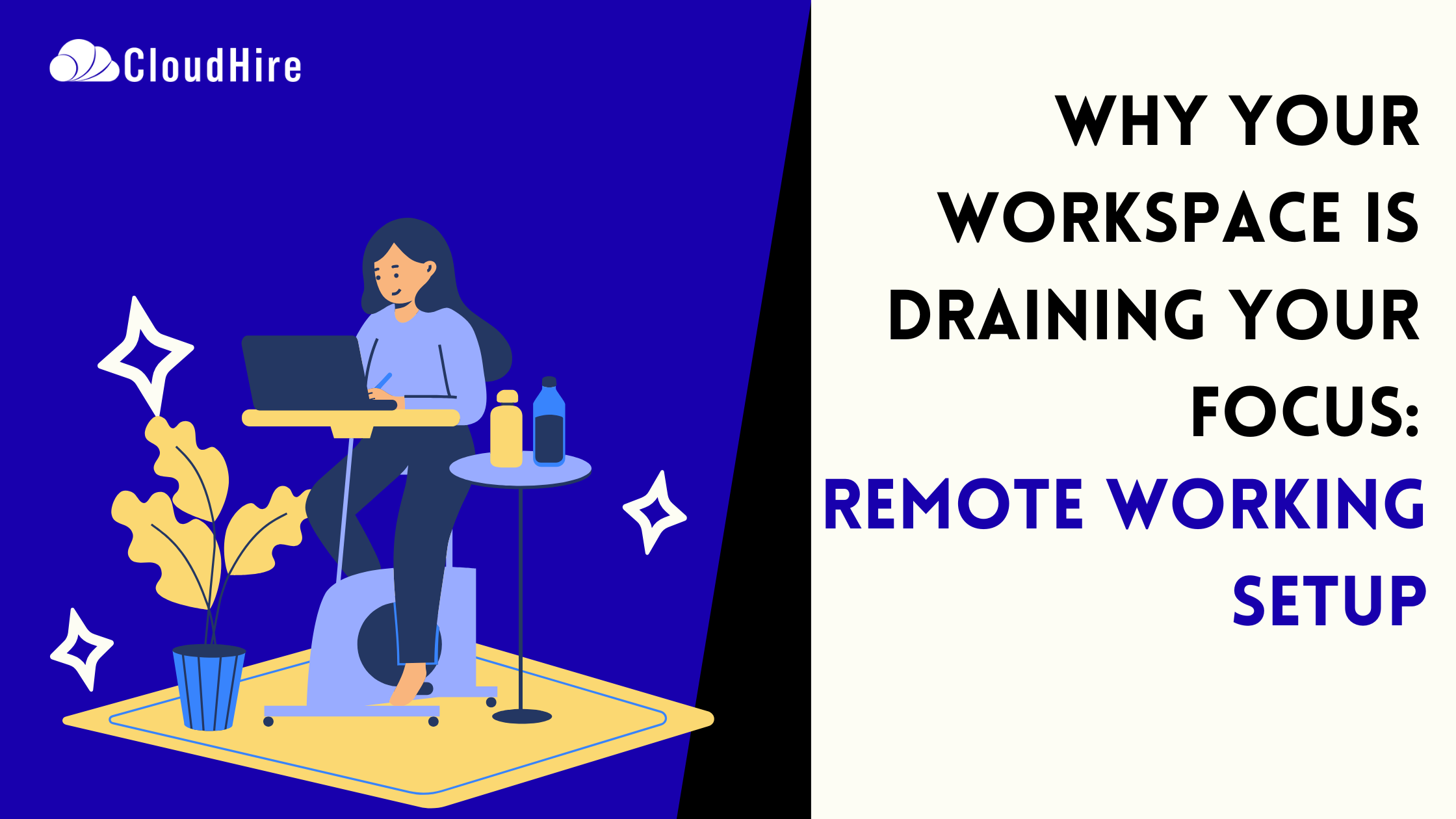
A working space at home can change how you feel, how you focus, and how you perform. A good remote working setup does three things well: it supports your body, it helps your focus, and it fits the work you do. Many guides list gadgets and trends. This article explains what actually matters, why it matters, and how to make choices that last.
Expert Tip: If you open Slack before your morning exercise, congratulations! You’ve officially canceled your workout without even saying it out loud. Once work pulls you in, those plans disappear faster than unread notifications.
Start With Outcomes, Not Gear
Most guides begin with gear. That makes shopping feel like the first step. A better start is to decide what you need the space to do.
Ask these questions:
- What tasks take up most of my time?
- Do I need long periods of deep focus or frequent calls?
- Which moments make me lose energy during the day?
Answering these helps you pick the right chair, desk height, and lighting. It also helps you avoid buying things that look useful but add clutter.
Where to Place Your Workspace?
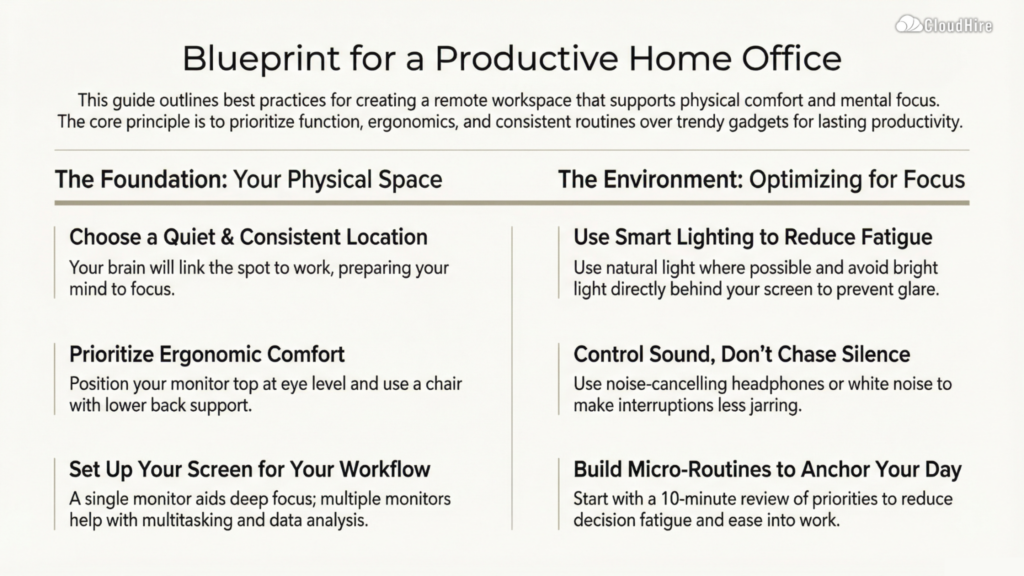
You do not need a full room for a good remote work setup. You do need two things: a quiet place and a consistent location.
A quiet place means fewer interruptions. If you have one hour of deep work, choose the spot with the fewest interruptions. Consistent location means your brain links that spot to work. When you sit there, your mind gets ready to focus.
Small tips that help:
- Face a wall with a simple visual. Avoid busy backgrounds.
- Keep tools you use daily within arm’s reach.
- Use a simple room divider or curtain if noise is the problem.
Consistency beats perfection. A small corner that is tidy and used daily works better than a perfect room you never use.
Desk and Chair: Comfort That Adds Hours, Not Minutes
Comfort changes how much you can do without pain or fatigue. Good posture matters. It also reduces interruptions like stretch breaks that break the flow. This is really important in a home office setup for remote work.
Desk rules:
- Your monitor top should sit near eye level. This reduces neck strain.
- Keep the mouse and keyboard so your forearms are roughly parallel to the floor.
- If you stand sometimes, use a stable standing desk that locks in place.
Chair rules:
- Choose a chair that supports your lower back.
- Test it for at least thirty minutes before deciding.
- If you prefer budget options, add a lumbar cushion and a footrest.
Comfort costs money. But it pays back in hours of uninterrupted, pain-free work.
Screen Setup That Reduces Friction
Your screen setup should match your work. One monitor is enough for focused tasks. Two or three monitors help with multitasking, debugging, or data analysis.
Keep these habits:
- Use a monitor arm to adjust height quickly.
- Keep the text size comfortable so you do not lean forward.
- Close unused tabs. A tidy screen lowers distractions.
If you use a laptop primarily, connect it to an external monitor when possible. A larger visible area reduces context switching and helps you keep work visible at a glance.
Lighting and Eye Care
Good lighting reduces fatigue and improves alertness. Natural light is best. If that is not possible, use a soft light that spreads evenly.
Simple rules:
- Avoid bright light directly behind the screen. It creates glare.
- Place a small lamp to light your workspace without shining into your eyes.
- Use blue light filters in the evening if you work late.
Take short eye breaks every 20 minutes. Look at something twenty feet away for twenty seconds. This small habit reduces eye strain and helps reset focus.
Sound: Control, Not Silence
Complete silence is rare. The better target is predictable sound. White noise, a fan, or a steady playlist can make interruptions less jarring.
Options:
- Noise-cancelling headphones when focus matters.
- A small white noise machine if abrupt sounds break your flow.
- Clear norms with housemates about quiet hours.
For calls, choose a headset with a clear microphone. Test it once with a colleague to ensure your voice sounds natural.
Tools for Task Flow, Not Distraction
Software choices shape your attention. Choose simple tools and set small rules for how you use them.
Rules to follow:
- Keep one task list. Use it for both daily work and longer goals.
- Block social apps during deep work sessions. Use a site blocker or schedule.
- Use calendar blocks for focused work and for collaboration.
Clear boundaries help you protect focus. They also make your working hours predictable to others.
Create Micro-Routines That Anchor Your Day
Routines anchor attention. They prepare your mind, reduce decision fatigue, and make transitions smooth.
Examples:
- Start work with a 10-minute review of your top three priorities.
- Close the first work session with a quick note of what you will do next.
- Use a brief physical activity between long sessions: a short walk or a few stretches.
Small routines add up. They help you enter focus faster and leave work without worry.
Organize Cables and Papers for Fewer Breaks
Clutter interrupts flow. Cables, chargers, and paper create small annoyances that add up.
Quick fixes:
- Use a simple cable tray under your desk.
- Keep a small tray for chargers and one for documents.
- At the end of each week, spend ten minutes clearing the desk.
A clean space makes focus easier and meetings look professional.
Meet People Where They Are: Lighting, Camera, Backdrop
If you do many meetings, set your camera and lighting once, then reuse that setup. Small, predictable improvements improve how others see you and how you feel.
Checklist:
- Camera at eye level.
- Light in front of you, not behind.
- A neutral background or a neat shelf.
Test your remote work office setup with a short recording to check framing and sound.
Health and Activity: Keep the Moving Parts Moving
Remote work reduces incidental movement. You must build small habits to stay healthy.
Ideas:
- Stand for five minutes every hour.
- Use a timer to remind yourself to move.
- Do a short stretch or mobility routine after long sessions.
Energy management matters more than strict exercise. Small, consistent movement prevents stiffness and keeps focus steady.
Personalize Without Overcomplicating
The best remote working setup should match your taste but not demand time. A few personal items make the space calming.
Keep personalization minimal:
- One plant, one picture, one meaningful object.
- Avoid many items that collect dust or distract you.
Personal touches help you feel at ease. Too many take attention away from work.
Test, Adjust, and Keep What Works
A setup is not final. Tweak it after real use. Keep changes small and targeted.
How to iterate:
- Change one thing at a time. Test for two weeks.
- Note improvements or new problems.
- Keep what reduces friction, discard what adds complexity.
Small experiments build a stable, comfortable setup faster than big overhauls.
Final Notes for Teams and Managers
A good remote working setup helps individuals and teams. Managers can support this by offering clear stipend policies, guidance on essentials, and flexible allowances. Teams that share simple best practices raise the baseline for everyone.
CloudHire sees remote roles succeed when companies support predictable setups and when candidates focus on clarity and steady delivery.
Frequently Asked Questions:
How to set up remote desktop to work from home?
To set up remote desktop for work from home, start by confirming your company’s access method (VPN, RDP, or a secure tool like AnyDesk/TeamViewer). Use a wired or stable high-speed internet connection, enable two-factor authentication, and restrict access to your work device only. Test latency, file access, and permissions before your first workday to avoid workflow breaks.
What is a reliable live streaming setup for remote work communication?
For reliable live streaming, the best setup for remote work communication, focus on clarity, stability, and low friction:
- Use a wired internet connection (Ethernet beats Wi-Fi for stability)
- Choose a good USB microphone or headset (audio matters more than video)
- Use a 1080p webcam with eye-level placement for natural presence
- Test lighting (face a window or use a soft ring light)
- Close background apps to avoid lag and dropped frames
- Do a quick test stream/call before important meetings
How much RAM is needed for working from home?
For most work from home tasks like video calls, office apps, and many browser tabs, 8 GB RAM is the bare minimum, but 16 GB RAM is the sweet spot for smooth work. If you run heavy tools like large spreadsheets, design apps, or coding environments, 16 GB or more helps keep things stable, with 32 GB useful only for very heavy or creative workloads.
Is it better to have your desk face a window or wall?
If possible, face your desk near or sideways to a window, not directly facing or with the bright window behind your screen. Side light gives natural brightness without strong glare on the monitor, while a plain wall behind the screen reduces eye strain and also looks cleaner on camera.
What do I need for work from home set up?
For a basic, healthy work from home setup you need:
- A stable laptop or PC with at least 8–16 GB RAM and a reliable internet connection (often 25 Mbps or more for smooth calls).
- A comfortable chair and desk height, an external keyboard and mouse and, if possible, an external monitor for better posture.
- A good webcam and microphone or headset, plus soft, even lighting so you look and sound clear on video calls.
Small extras like a laptop stand, power backup, and a quiet, clutter‑free corner help your space feel more like a calm, focused workspace instead of just another part of home.